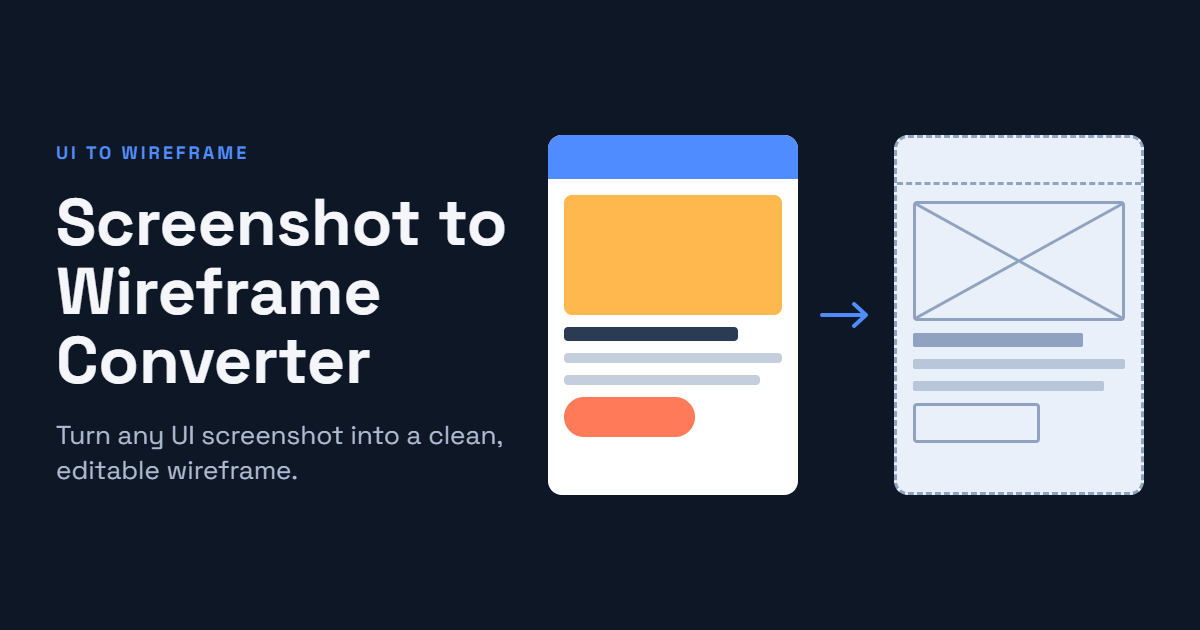
Designing a website or mobile application often starts with an idea, a rough sketch, or an example of an existing interface. However, recreating a layout from a screenshot can take hours of manual work. Designers must identify sections, understand spacing, map navigation elements, and determine how individual components fit together.
A screenshot to wireframe converter simplifies this process by transforming an existing website or app screenshot into a simplified wireframe. Instead of rebuilding every element from scratch, users can generate an initial layout and refine it according to their project requirements.
This approach is useful for UI/UX designers, web developers, product managers, startup founders, and anyone who needs to understand or recreate a digital interface.
Whether you are redesigning an existing website, planning a mobile application, or studying a competitor’s user interface, converting screenshots into wireframes can make the early design process faster and more organized.
What Is a Screenshot to Wireframe Converter?
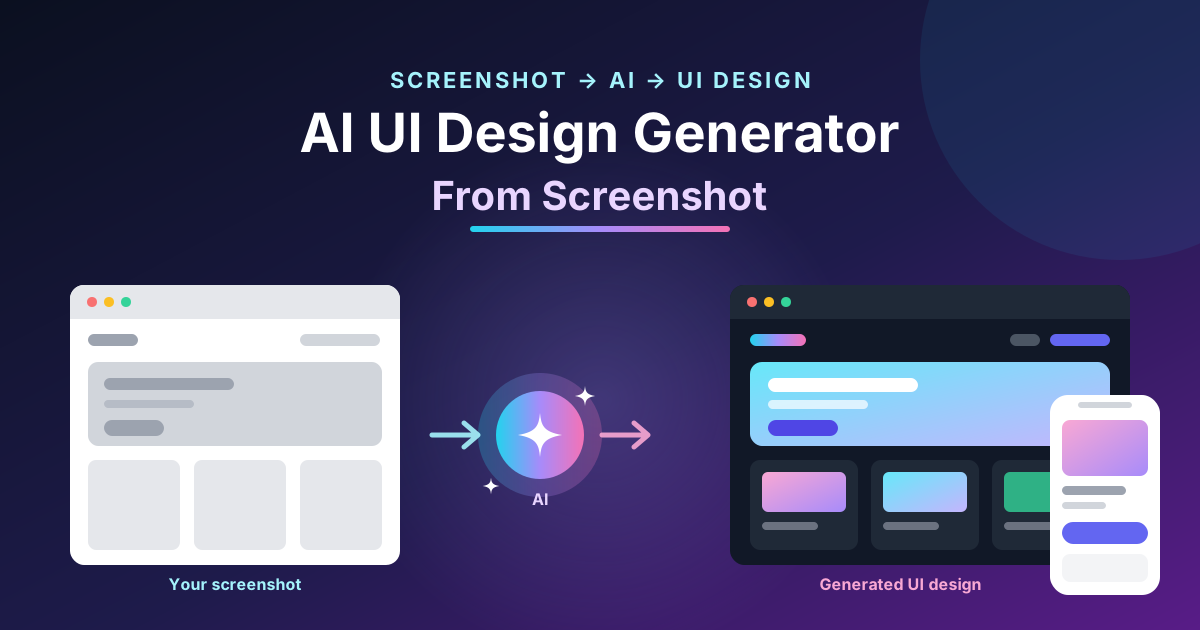
A screenshot to wireframe converter is a design tool that analyzes an image of a website or mobile application and converts its visible structure into a simplified layout.
A typical screenshot contains colors, images, text, buttons, icons, and other visual details. A wireframe focuses on the arrangement of these elements rather than their final appearance.
For example, a screenshot of an e-commerce homepage might contain a navigation bar, promotional banner, product cards, category sections, and a footer. A wireframe converter attempts to identify these areas and represent them as basic shapes, text placeholders, and interface components.
Depending on the tool, the output may be a static wireframe image, an editable canvas, or a structured design file.
How Is a Wireframe Different From a Screenshot?
A screenshot shows what an interface looks like at a particular moment. A wireframe shows how its main elements are organized.
Wireframes usually use simple shapes, neutral colors, and placeholder text to communicate layout and functionality without the distraction of detailed visual styling.
This distinction helps teams focus on usability, content hierarchy, navigation, and page structure before investing time in visual design.AI Screenshot to Figma Converter
How Does a Screenshot to Wireframe Converter Work?
Most screenshot conversion workflows combine image processing, layout analysis, and, in more advanced tools, artificial intelligence.
The exact process depends on the software, but the general steps are similar.
1. Upload the Screenshot
The user uploads a screenshot of a website, landing page, dashboard, or mobile application. Some tools accept full-page screenshots, while others work best with individual viewport captures.
Clear images with readable interface elements generally produce better results.
2. Analyze the Interface Structure
The converter examines the screenshot to identify visual regions and potential interface components.
These may include:
- Headers and navigation menus
- Text blocks and headings
- Images and promotional banners
- Buttons and input fields
- Product cards and content grids
- Sidebars and footers
AI-powered tools may also attempt to recognize relationships between components, such as buttons belonging to a form or product images belonging to individual cards.
3. Simplify Visual Elements
After identifying the major regions, the tool converts detailed visual elements into basic wireframe representations.
For example, a product image may become a rectangular placeholder, while a paragraph may be represented by several horizontal lines. A colorful call-to-action button might become a simple outlined or filled rectangle.
This reduces visual complexity and makes the layout easier to evaluate.
4. Generate the Wireframe
The software arranges the detected elements into a wireframe that resembles the original interface structure.
Some converters preserve approximate positioning and dimensions. More advanced solutions may create editable layers or reusable components.
The accuracy of the result depends on the screenshot quality, interface complexity, and capabilities of the conversion tool.
5. Edit and Export the Result
Once the wireframe is generated, users can adjust spacing, resize sections, rename components, remove unnecessary elements, and reorganize the layout.
Depending on the platform, the finished wireframe may be exported as an image, PDF, or design file. Check the tool’s supported formats before choosing a solution for a specific workflow.
Key Benefits of Converting Screenshots Into Wireframes
Using a screenshot to wireframe converter can improve several stages of the design process.
Faster UI/UX Prototyping
Manually recreating a complex interface requires time and attention to detail. A converter provides an initial layout that designers can refine instead of rebuilding every section individually.
This is particularly helpful when exploring multiple homepage concepts, dashboard layouts, or landing page structures.
Easier Website Redesign
Redesign projects often begin with an existing website. Converting its screenshots into wireframes helps teams understand the current layout before deciding what to change.
Designers can identify crowded sections, inconsistent spacing, weak content hierarchy, and unnecessary interface elements.
The resulting wireframe becomes a useful starting point for planning improvements.
Better Communication Between Teams
Visual screenshots contain many details that can distract stakeholders from the underlying structure. Wireframes simplify those details and make layout discussions more focused.
Designers, developers, clients, and product managers can discuss navigation, content placement, and functionality without debating colors or typography too early.
Improved Design Reference and Documentation
A wireframe created from a screenshot can serve as documentation for an existing interface.
It helps teams record how a page is organized, compare different design versions, and communicate proposed changes during development.
However, a wireframe should not be treated as a complete technical specification. Responsive behavior, interaction states, and accessibility requirements may need separate documentation.
Important Features to Look for in a Screenshot to Wireframe Tool
Not every converter offers the same capabilities. Choosing a tool based on your workflow can make a significant difference.
AI-Powered Layout Detection
AI-assisted layout detection can help recognize common interface elements and separate complex screenshots into meaningful sections.
Look for tools that identify headings, buttons, images, navigation bars, and content containers rather than producing only a rough collection of shapes.
Editable Wireframe Components
Editability is one of the most important features.
A static image may be useful for reference, but editable components allow designers to reposition sections, change dimensions, and experiment with different layouts.
If you use a particular design platform, verify that the converter supports compatible exports or an appropriate integration.
Responsive Layout Support
Websites often use different arrangements on desktop, tablet, and mobile screens.
A useful converter should make it easy to adapt the initial wireframe for different screen sizes. Some tools may infer responsive layouts, while others require manual adjustments.
Do not assume that a single screenshot contains enough information to reproduce the original responsive behavior accurately.
Clean Export Options
Export capabilities determine how easily the wireframe fits into an existing design workflow.
Depending on your needs, you may want an image export for documentation, a PDF for review, or an editable design format for further work.
Privacy and Security
Screenshots can contain customer information, internal dashboards, unpublished products, or confidential business data.
Before uploading an image, review the service’s privacy policy, file-retention practices, and data-handling terms. Avoid submitting sensitive screenshots to tools that have not been approved for your organization.
Common Use Cases for Screenshot to Wireframe Conversion
Screenshot conversion is useful across several design and development scenarios.
Website Layout Recreation
Web designers can use screenshots of existing pages as references when planning a similar layout for a new project.
For example, a designer creating a technology blog might analyze a reference homepage to understand the placement of its navigation menu, featured articles, category blocks, and sidebar.
The wireframe provides a structural reference without requiring the original visual styling to be copied.
Landing Page Optimization
Marketing teams can convert landing page screenshots into wireframes to study content hierarchy and call-to-action placement.
They can experiment with alternative arrangements, move testimonials closer to conversion points, simplify long sections, or make important information easier to find.
These changes can then be tested against actual user behavior rather than relying solely on design assumptions.
Mobile App Interface Planning
App designers can use mobile screenshots to map login screens, onboarding flows, profile pages, settings menus, and other interface layouts.
A simplified wireframe makes it easier to discuss navigation and screen organization before creating a polished prototype.
However, screenshots alone may not reveal gestures, transitions, hidden menus, or other interactive behavior.
Competitor Interface Analysis
Product teams can study publicly accessible competitor interfaces to understand common layout patterns and identify opportunities for differentiation.
The goal should be to learn from established usability patterns rather than copy another company’s branding, original creative assets, or proprietary design work.
Legacy Website Modernization
Older websites may lack current design documentation. Screenshots can help teams reconstruct a basic representation of the existing interface before planning a migration or redesign.
This is especially useful when the original design files are unavailable.
Screenshot to Wireframe Converter vs. Manual Wireframing
Both approaches have advantages, and the right choice depends on the project.
| Factor | Screenshot conversion | Manual wireframing |
| Starting point | Existing screenshot | Idea, requirements, or sketch |
| Initial speed | Often faster for existing layouts | Depends on complexity |
| Layout accuracy | Depends on image analysis | Controlled by the designer |
| Creative freedom | Limited by the reference initially | High from the beginning |
| Editing effort | Required after conversion | Required throughout creation |
| Best use | Redesigns and interface analysis | New concepts and custom layouts |
A screenshot converter is most valuable when an existing interface provides a useful starting point. Manual wireframing is often more suitable when the product is new and there is no established layout to reference.
Many teams benefit from combining both methods: convert a reference screenshot, refine the resulting wireframe, and then create alternative layouts based on user needs.
Common Challenges and How to Solve Them
Although screenshot conversion can save time, the generated output may not always be accurate.
Poor Screenshot Quality
Blurry images, compressed text, and low-resolution captures can make interface elements difficult to recognize.
Solution: Use a clear screenshot with sufficient resolution. Capture the entire relevant section and avoid unnecessary compression.
Complex or Overlapping Elements
Dense dashboards, layered menus, unusual layouts, and overlapping components may confuse automated detection.
Solution: Divide a long page into smaller sections, convert them separately when necessary, and review the output before combining the sections.
Incorrect Spacing and Alignment
A converter may estimate component boundaries incorrectly or fail to preserve the original spacing.
Solution: Check margins, padding, alignment, and component sizes manually. Treat the generated wireframe as a draft rather than a finished design.
Missing Interaction Details
A screenshot cannot show every behavior of an interface. It may not reveal what happens after clicking a button or opening a dropdown menu.
Solution: Add interaction notes, create separate wireframes for important states, and document navigation flows when required.
Best Practices for Getting Better Results
To get more value from a screenshot to wireframe converter, follow a structured workflow.
- Choose a clear reference: Use a screenshot that represents the page or component you want to recreate.
- Define your goal: Decide whether you are documenting an existing page, redesigning a website, or preparing a prototype.
- Review the generated structure: Check whether the major sections and interface components have been identified correctly.
- Simplify unnecessary details: Focus on hierarchy, spacing, navigation, and content organization.
- Test different layouts: Experiment with alternative arrangements instead of treating the original screenshot as the only possible design.
- Prepare the next design stage: Add annotations, responsive layouts, or interaction states before moving into high-fidelity UI design.
This process combines automation with human judgment, helping designers work faster without sacrificing control over the final result.
How to Choose the Right Screenshot to Wireframe Converter
Start by identifying the format and level of editability you need.
If your primary goal is to understand a webpage’s structure, a basic screenshot-to-wireframe tool may be sufficient. If you need to modify components or continue designing in a professional interface design platform, prioritize editable outputs and integration options.
Consider the following questions:
- Does the tool support website and mobile screenshots?
- Can you edit individual elements after conversion?
- Does it recognize common UI components?
- Can it handle full-page screenshots?
- Does it support the export format you need?
- Are there limitations on file size, usage, or export quality?
- Does its privacy policy meet your requirements?
Test the tool with a representative screenshot before committing to a paid plan. A short trial can reveal whether its output is accurate enough for your particular workflow.
Conclusion
A screenshot to wireframe converter offers a practical way to transform existing website and mobile app interfaces into simplified design layouts. By reducing the need for manual reconstruction, it can help designers accelerate prototyping, document existing pages, analyze interface structures, and plan redesigns more efficiently.
However, automated conversion is not a substitute for thoughtful design. Generated wireframes may contain incorrect spacing, missing elements, or assumptions about interface behavior that require manual correction.
The most effective approach is to use screenshot conversion as a starting point, refine the layout carefully, and validate design decisions against user needs.
For designers, developers, and product teams working with existing interfaces, a well-chosen screenshot to wireframe converter can become a valuable part of a faster and more flexible UI/UX design workflow.

One thought on “Screenshot to Wireframe Converter: Turn UI Screenshots Into Editable Wireframes”