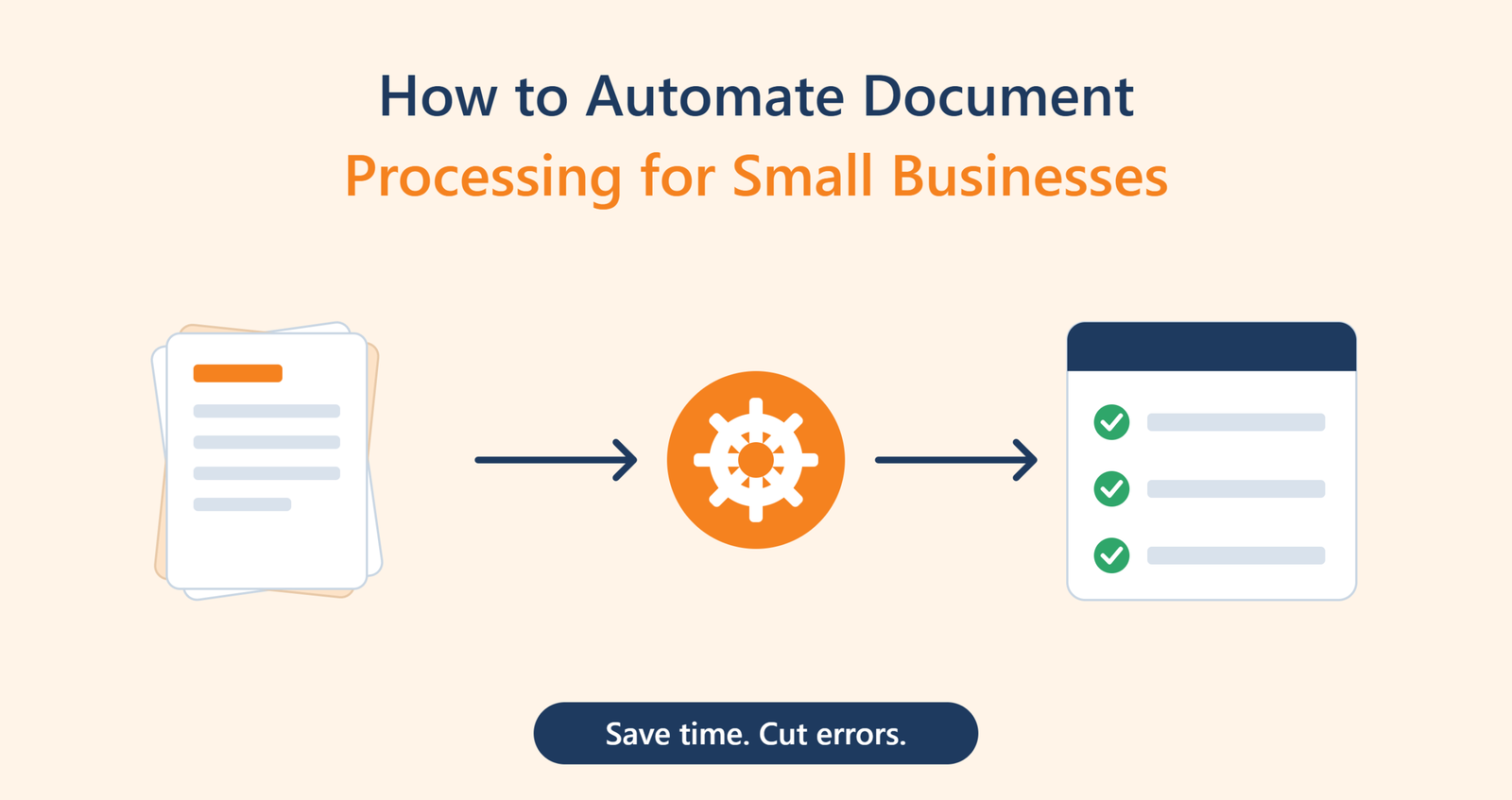
Small businesses handle documents every day, including invoices, purchase orders, customer forms, receipts, contracts, employee records, and financial reports. Managing these documents manually can consume valuable time, increase administrative costs, and create unnecessary errors.
As a business grows, the volume of paperwork often increases. Employees may spend hours entering information into spreadsheets, searching for files, checking invoices, and transferring data between different applications. These repetitive tasks can slow down operations and prevent teams from focusing on more important business activities.
Learning how to automate document processing for small businesses can help solve these problems. Document automation uses technologies such as optical character recognition (OCR), artificial intelligence (AI), and workflow automation to extract information, organize files, validate data, and move documents through business processes.
The good news is that small businesses do not need a large IT department or an expensive enterprise system to get started. With the right tools and a clear implementation plan, even a small team can automate routine document-related tasks.
What Is Document Processing Automation?
Document processing automation is the use of software to handle repetitive tasks involving business documents with minimal manual intervention.
Traditional document management often requires employees to open files, read information, copy details into another system, rename documents, and send them to the appropriate person. Automation can perform many of these steps automatically.
For example, when a business receives an invoice by email, an automated workflow could:
- Detect the incoming invoice.
- Extract the supplier name, invoice number, date, and total amount.
- Validate the extracted information.
- Save the document in the correct folder.
- Send the invoice to the appropriate person for approval.
- Transfer approved information into accounting software.
Some workflows can operate almost entirely automatically, while others require human review for unusual, incomplete, or sensitive documents.
Why Small Businesses Should Automate Document Processing
Reduce Manual Data Entry
Manual data entry is repetitive and vulnerable to mistakes. Employees may enter incorrect invoice amounts, miss important dates, or accidentally duplicate records.
Automated document processing extracts information directly from digital files, reducing the need to type the same details repeatedly.
Save Time and Operating Costs
Processing paperwork manually becomes expensive when employees spend significant time on routine administrative work.
Automation can shorten processing times and allow employees to concentrate on customer service, sales, financial planning, and other activities that contribute to business growth.
Improve Data Accuracy
Automation can apply consistent rules when extracting, formatting, and validating information.
For example, a workflow can check whether an invoice contains a supplier name, invoice number, due date, and total amount before sending it for approval.
However, AI can still misread information. Validation rules and human review remain important, especially for financial records.
Improve Document Organization
Automated workflows can categorize files, apply naming conventions, assign document types, and store records in designated folders.
This makes it easier for employees to locate important documents without searching through emails and unrelated files.
Support Business Growth
A manual process that works for 20 invoices per month may become difficult to manage when the business receives hundreds.
Automation allows small businesses to increase document processing capacity without increasing administrative workload at the same rate.
Common Documents Small Businesses Can Automate
Before selecting software, identify the document types that consume the most time.
Invoices and Receipts
Businesses can automate invoice data extraction, expense categorization, duplicate detection, and approval notifications.
Receipt processing can also help employees organize expenses and prepare information for bookkeeping.
Purchase Orders
Purchase order automation can capture item descriptions, quantities, supplier details, and prices.
The workflow can compare purchase orders with invoices and delivery records to identify discrepancies that require attention.
Customer Forms
Customer onboarding forms often contain names, contact details, addresses, and service requirements.
Automation can transfer this information into a customer relationship management (CRM) system, reducing repetitive data entry.
Contracts and Agreements
Document automation can organize contracts, extract key dates, and send reminders before renewal deadlines.
Sensitive legal terms should still be reviewed by qualified personnel rather than relying entirely on automated interpretation.
Employee Documents
Businesses can automate the collection, categorization, and storage of employee forms, timesheets, and other records.
Access permissions should be carefully configured because these documents may contain confidential personal information.
Essential Technologies for Document Processing Automation
Several technologies work together to make document workflows more efficient.
Optical Character Recognition (OCR)
OCR converts text within scanned documents and images into machine-readable text.
For example, OCR can identify printed information on a scanned receipt or invoice, allowing software to process the text without requiring an employee to retype it.
OCR quality depends on image clarity, document structure, handwriting, and language.
Artificial Intelligence and Data Extraction
AI-powered document processing can identify relevant information and determine which fields correspond to specific values.
A system may recognize that a number represents an invoice total rather than a purchase order number.
More advanced tools can classify documents, interpret semi-structured layouts, and flag information that appears inconsistent.
Workflow Automation
Workflow automation connects document processing with other business applications.
For example, an automation platform can detect a new email attachment, send the file to an OCR service, store the extracted information in a spreadsheet, and notify a manager when approval is needed.
Cloud Storage and Document Management
Cloud storage allows authorized employees to access documents from different locations.
A document management system can provide search, permissions, version control, and retention features. These capabilities help businesses maintain organized records as their document libraries expand.
How to Automate Document Processing for Small Businesses: Step by Step
Step 1: Identify Repetitive Document Tasks
Start by reviewing how your business currently handles paperwork.
Identify processes that involve repeated copying, checking, renaming, sorting, or transferring information.
Record how many documents you process each week, how long each task takes, and where mistakes commonly occur.
Practical tip: Choose one high-volume, repetitive process first rather than attempting to automate every document workflow at once.
Step 2: Standardize Your Documents
Automation works better when documents follow predictable structures.
Create consistent file naming rules, organize documents by category, and use standardized forms wherever possible.
For example, an invoice workflow might use fields such as supplier name, invoice number, issue date, due date, subtotal, tax, and total amount.
Standardization reduces ambiguity and makes automated validation easier.
Step 3: Choose the Right Automation Tools
Select tools according to your document volume, budget, technical skills, and existing software.
A small business might combine cloud storage, an OCR service, a spreadsheet, and a no-code automation platform.
Before committing, check supported file formats, integration options, pricing limits, data security, and whether the system can export your information.
Avoid paying for advanced enterprise features if a simpler workflow solves the actual problem.
Step 4: Automate Document Capture
Create a reliable way for documents to enter the workflow.
Common options include dedicated email addresses, online forms, shared folders, document uploads, and scanning applications.
For example, a business could direct all supplier invoices to a dedicated email inbox. An automation rule can detect new attachments and send them to the next processing step.
Step 5: Extract and Validate Information
Use OCR or an AI document extraction service to identify the required fields.
Next, apply validation rules. Check that dates are valid, required fields are present, invoice totals are reasonable, and duplicate invoice numbers are flagged.
Documents with missing or uncertain information should be sent to a review queue rather than processed blindly.
Step 6: Connect Your Business Applications
Connect the extraction workflow to the applications your business already uses.
Depending on the setup, the system may transfer data to accounting software, a CRM, an inventory platform, or a spreadsheet.
Test the connections carefully to prevent duplicate records and ensure information reaches the correct destination.
Step 7: Add Human Approval Where Needed
Not every document should be processed without human involvement.
Invoices above a specified amount, unusual payment details, and contracts containing important legal obligations may require approval.
A good workflow automates routine work while making exceptions easy to identify and resolve.
Step 8: Monitor and Improve the Workflow
Track processing time, extraction accuracy, exception rates, and the amount of manual work remaining.
Review failed documents regularly and update your rules when new document formats appear.
Automation should be treated as an ongoing process, not a one-time installation.
Example: Automating Invoice Processing in a Small Business
Consider a small marketing agency that receives supplier invoices through email.
Previously, an employee downloaded each invoice, typed the details into a spreadsheet, renamed the file, and emailed it to the manager for approval.
The agency introduces an automated workflow:
- A new invoice arrives in the designated inbox.
- The system saves the attachment to a secure folder.
- OCR and AI extract the supplier, invoice number, date, and amount.
- Validation rules check required fields and flag possible duplicates.
- The extracted data is added to the accounting workflow.
- The manager receives an approval request.
- Once approved, the invoice moves to the appropriate records folder.
The employee now spends less time copying information and more time handling exceptions.
The actual savings depend on invoice volume, the quality of extraction, subscription costs, and how much manual review remains necessary.
Best Practices for Secure and Reliable Automation
Protect Sensitive Information
Business documents may contain financial details, customer information, and employee records.
Choose reputable providers, restrict access to authorized users, and review how documents are stored and processed. Avoid uploading confidential files to services without understanding their privacy and retention policies.
Maintain Audit Trails
Keep records of extracted information, approval decisions, corrections, and workflow failures.
Audit trails help businesses investigate discrepancies and understand how a document moved through the system.
Prepare for Exceptions
Documents may be incomplete, handwritten, damaged, or formatted differently from expected.
Build a process for sending these files to a human reviewer instead of allowing errors to spread through connected systems.
Measure Return on Investment
Compare the time and cost of the manual process with the automated workflow.
Include software subscriptions, implementation, maintenance, employee training, and the cost of correcting errors.
Automation is valuable when its measurable benefits outweigh these costs.
Common Mistakes to Avoid
Small businesses can undermine their automation efforts by making a few avoidable mistakes.
- Automating a poorly defined process before fixing its underlying problems.
- Choosing software based on features instead of actual business needs.
- Assuming AI extraction is always accurate.
- Ignoring duplicate records and validation rules.
- Giving automation tools excessive access to sensitive data.
- Failing to train employees on exception handling.
- Overlooking subscription limits and ongoing maintenance costs.
A focused, carefully tested workflow is usually more effective than a complicated system introduced too quickly.
Conclusion
Learning how to automate document processing for small businesses can help reduce repetitive administrative work, improve record organization, and make daily operations more efficient.
By combining OCR, AI-powered data extraction, workflow automation, and secure document storage, small businesses can simplify processes involving invoices, receipts, customer forms, purchase orders, and contracts.
The most effective approach is to begin with one repetitive task, standardize the documents involved, choose affordable tools, and introduce validation and human approval where necessary.
Measure the results before expanding automation to other departments. With a practical implementation plan and regular monitoring, document processing automation can become a valuable part of a small business’s long-term operational strategy.