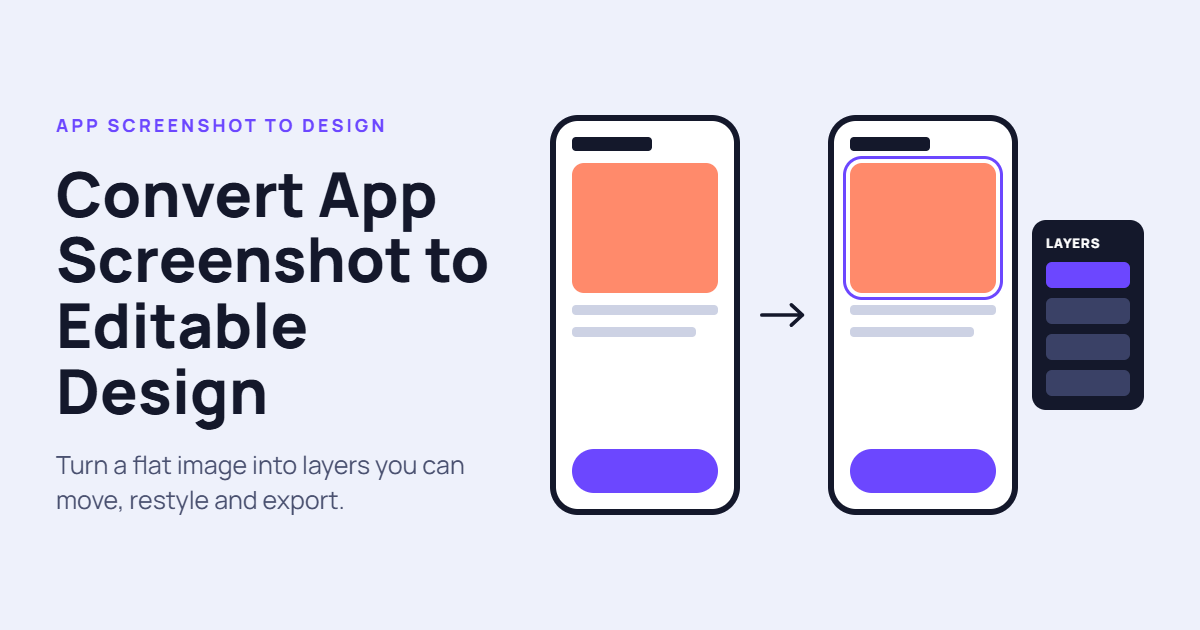
Recreating a mobile application interface from a screenshot can be a time-consuming task. Designers often need to manually rebuild buttons, navigation bars, icons, text fields, cards, and other interface elements before they can make meaningful changes to an existing design.
A more efficient approach is to convert an app screenshot to editable design using tools that analyze the image and help reconstruct its interface as editable components. Instead of treating the screenshot as a flat picture, designers can use it as a starting point for building a flexible design layout.
This process is useful for UI/UX designers, mobile app developers, startup founders, product teams, and freelancers who want to recreate or improve existing app interfaces.
Whether you are redesigning an Android application, developing an iOS product, or turning a visual reference into a working prototype, screenshot-to-design conversion can reduce repetitive work and accelerate the design process.
In this guide, you will learn how the conversion process works, which features matter most, how to improve the results, and what limitations to consider before choosing a tool.
What Does It Mean to Convert an App Screenshot to Editable Design?
Converting an app screenshot to editable design means transforming a static image of a mobile application into a design layout whose individual elements can be selected, modified, resized, and rearranged.
A regular screenshot contains pixels. You can crop the image or add annotations, but you cannot directly edit the original button text, move a navigation icon independently, or change a card’s dimensions.
An editable design represents interface elements as separate objects or layers. Depending on the tool, these may include text layers, image assets, shapes, buttons, frames, and reusable components.
For example, imagine a screenshot of a shopping application containing a search bar, product images, prices, category icons, and a bottom navigation menu. A screenshot conversion tool may identify these elements and reconstruct them as separate design objects.
You can then change the product card layout, replace images, adjust typography, and experiment with different spacing without rebuilding the entire screen manually.
However, conversion quality varies. Some tools create genuinely editable layers, while others generate a flattened image or a rough approximation that requires substantial correction.
How Does App Screenshot to Editable Design Conversion Work?
The process typically combines image analysis, interface recognition, and design reconstruction. AI-powered tools may automate several of these steps.AI Screenshot to Figma Converter
Step 1: Upload a Clear App Screenshot
Start by selecting a screenshot of the mobile interface you want to recreate.
You can use a screenshot from an existing application, a design reference, a prototype preview, or your own app. Choose an image with clearly visible interface elements and minimal compression.
If the application has several screens, process each screen separately when that produces more accurate results.
Step 2: Analyze the UI Components
The conversion tool examines the screenshot to identify common interface elements, such as:
- Headers and status bars
- Buttons and navigation icons
- Text labels and headings
- Search fields and input boxes
- Product cards and image containers
- Tabs, menus, and content sections
More advanced tools may recognize alignment, spacing, component relationships, and visual hierarchy.
The goal is to understand not only which elements appear in the image but also how they are arranged.
Step 3: Reconstruct the Design Layers
After analyzing the screenshot, the tool attempts to recreate the interface using separate objects.
Text may become editable text layers, while buttons and cards may become shapes or grouped components. Images may be extracted as individual assets or retained as image layers.
The level of editability depends on the tool and the complexity of the original screen. Small icons, decorative elements, and overlapping objects may require manual reconstruction.
Step 4: Refine the Generated Interface
Once the initial design is ready, review the result carefully.
Check the font styles, colors, component dimensions, alignment, spacing, and image placement. Correct any elements that were misidentified or combined incorrectly.
This stage is important because even a visually convincing conversion may contain inaccurate dimensions or inconsistent layers.
Step 5: Export to an Editable Design Environment
The final step is to move the reconstructed interface into a design environment where you can continue editing it.
If your workflow uses Figma or another UI design platform, verify that the conversion tool supports a compatible export format or integration.
Before starting, confirm that the exported file preserves individual layers and editable text. A screenshot embedded inside a design canvas is not the same as a fully editable interface.
Benefits of Converting App Screenshots Into Editable Designs
Converting a screenshot into an editable mobile UI offers several practical advantages.
Faster Mobile App Prototyping
Creating every component from scratch can slow down the early stages of product development.
Screenshot conversion provides a starting layout that designers can refine, allowing them to focus on improving the interface instead of reproducing every visible element manually.
This can be particularly helpful when creating early prototypes for shopping apps, productivity tools, booking platforms, and business dashboards.
Easier UI Redesign and Modernization
Existing applications often need improvements to their layout, navigation, accessibility, and visual consistency.
An editable version of the current interface makes it easier to test different arrangements, update outdated elements, and introduce a more consistent design system.
Instead of starting with a blank canvas, designers can preserve useful parts of the original structure while changing the areas that need improvement.
Better Collaboration Between Designers and Developers
Editable design files help development teams understand how an interface is organized.
Developers can inspect component sizes, spacing, text styles, and visual relationships more easily than they can from a flat screenshot alone.
Although a design file does not replace implementation specifications, it can improve communication and reduce ambiguity during handoff.
Lower Repetitive Design Effort
Manually recreating dozens of interface elements requires patience and attention to detail.
Automated reconstruction can reduce some of that work, particularly for screens with recognizable layouts and common UI components.
The time saved depends on conversion quality, the number of corrections required, and the complexity of the interface.
Essential Features of an App Screenshot to Editable Design Tool
Not every conversion tool provides the same level of control. Before choosing one, consider the features that matter most to your workflow.
AI-Powered UI Recognition
AI-based interface recognition can help identify buttons, text, images, cards, and other elements in a screenshot.
Look for a tool that creates a structured layout instead of simply placing rectangles over visible content.
Accurate recognition is especially important for complex interfaces containing several nested sections.
Fully Editable Layers
Layer-level editing is one of the most important requirements.
You should be able to select individual elements, change text, adjust colors, resize objects, and move components independently.
Check whether the tool preserves editable text or converts text into images or vector outlines. Editable text is generally more useful for ongoing design work.
Component and Layout Preservation
A good converter should preserve the overall arrangement of the interface as closely as possible.
This includes alignment, margins, card dimensions, button placement, and relationships between related elements.
Some tools may also support grouping and reusable components, making it easier to maintain consistency across multiple screens.
Compatibility With Design Software
If you plan to continue working in a particular design platform, compatibility should be a priority.
Confirm whether the tool supports direct integration, editable file exports, or another reliable method of transferring the generated design.
Do not assume that every screenshot converter exports native design files simply because it advertises editable results.
Support for Multiple Mobile Screen Sizes
Mobile interfaces must work across different screen sizes and aspect ratios.
A screenshot represents only one particular view of an application. It does not automatically reveal how the interface responds to smaller screens, larger devices, or different operating system settings.
Choose a workflow that allows you to adjust the reconstructed layout and test alternative screen dimensions.
Common Use Cases for Editable App Screenshot Conversion
Screenshot-to-design conversion can support a variety of product design tasks.
Recreating an Existing Mobile App Interface
Designers may need to rebuild an interface when original design files are missing or unavailable.
A screenshot can provide a useful visual reference for reconstructing the main layout, although the original spacing, typography, and hidden components may still require investigation.
This approach is particularly useful for documenting older applications before beginning a redesign.
Designing E-Commerce Applications
Shopping applications often contain repeated interface patterns, including product cards, category lists, search bars, pricing labels, and navigation menus.
Converting a reference screenshot into an editable design helps designers experiment with product placement, image proportions, promotional banners, and purchase buttons.
The reconstructed design can then be adapted to match the needs of a new store.
Creating Dashboard and Productivity App Designs
Business applications frequently use tables, charts, filters, forms, and navigation panels.
An editable reconstruction can help product teams analyze an existing dashboard and explore ways to simplify complex information.
However, interactive behavior and data relationships must be designed separately when they are not visible in the screenshot.
Turning Design References Into Prototypes
Founders and product managers often collect screenshots of interfaces they find useful.
Converting these references into editable layouts makes it easier to communicate ideas, create early mockups, and evaluate different design directions before development begins.
Use references to understand layout principles and usability patterns rather than copying another product’s distinctive branding or proprietary assets.
Challenges You May Face During Screenshot Conversion
Although automated conversion can speed up design work, it does not always produce a perfect result.
Incorrect Text Recognition
Small fonts, unusual typography, and compressed screenshots can lead to inaccurate text recognition.
How to improve it: Use a high-resolution screenshot and verify all labels, prices, headings, and input placeholders after conversion.
Missing or Inaccurate Icons
Small icons may be difficult to identify because of their size, similar shapes, or complex backgrounds.
How to improve it: Replace incorrect icons with suitable vector assets or native components from your design system.
Flattened or Poorly Organized Layers
Some tools create layers that are difficult to edit or group unrelated elements together.
How to improve it: Check the layer structure before committing to a workflow. Reorganize groups and recreate important components when necessary.
Inconsistent Spacing and Typography
Automated tools may estimate dimensions and font properties rather than recover the original design specifications.
How to improve it: Compare the output with the source screenshot and manually correct spacing, font sizes, line heights, and alignment.
Missing Responsive and Interactive Behavior
A static image does not reveal every interaction, transition, or layout rule used by the original application.
How to improve it: Treat the converted screen as a visual starting point. Create separate states for menus, dialogs, loading screens, and other important interactions.
Best Practices for Getting Accurate Results
To get better results when you convert an app screenshot to editable design, follow a consistent process.
- Use a high-quality screenshot. Clear images help conversion tools identify text, boundaries, and interface components.
- Start with one screen. Test the process on a representative screen before converting an entire application.
- Prioritize layer editability. Make sure essential elements can be modified independently.
- Check visual accuracy. Compare the generated design with the original image and correct obvious differences.
- Organize the design file. Use meaningful layer names, groups, and reusable components where supported.
- Apply a consistent design system. Standardize colors, typography, spacing, and button styles after conversion.
- Test other screen sizes. Adjust the layout for different mobile dimensions rather than assuming the original structure will adapt automatically.
- Review privacy requirements. Avoid uploading confidential application screenshots to unapproved services.
Following these steps helps turn an automated result into a usable design asset rather than an imperfect visual copy.
How to Choose the Right Screenshot to Design Converter
The best tool depends on what you need to accomplish.
If you only want to understand an interface layout, a basic reconstruction tool may be enough. If you need to redesign screens, collaborate with developers, or build a detailed prototype, prioritize editable layers, export compatibility, and component-level control.
Before choosing a solution, ask yourself:
- Does it support Android and iOS interface screenshots?
- Can you edit individual text and image elements?
- Does it preserve component positioning and alignment?
- Can you export the result into your preferred design software?
- Does it support multiple screens and different device sizes?
- How much manual correction does the output require?
- Are usage limits, export restrictions, or privacy concerns clearly explained?
Test a real screenshot from your project before purchasing a subscription. The quality of the exported design matters more than the number of AI features advertised by the tool.
Conclusion
Learning how to convert app screenshot to editable design can make mobile UI development and redesign workflows more efficient. Instead of recreating every visible element manually, designers can use screenshot conversion to generate an initial layout and then refine it into a structured, editable interface.
The biggest benefits include faster prototyping, easier redesigns, improved team collaboration, and reduced repetitive work. However, conversion accuracy depends on screenshot quality, the capabilities of the tool, and the complexity of the interface.
For the best results, choose a solution that supports genuinely editable layers, review the generated components carefully, and refine the design before moving into development.
Ultimately, screenshot conversion works best as a design accelerator, not a replacement for professional judgment. Combining automated reconstruction with thoughtful UI/UX decisions helps transform a static app screenshot into a practical foundation for a better mobile application.

One thought on “Convert App Screenshot to Editable Design: A Complete Guide”