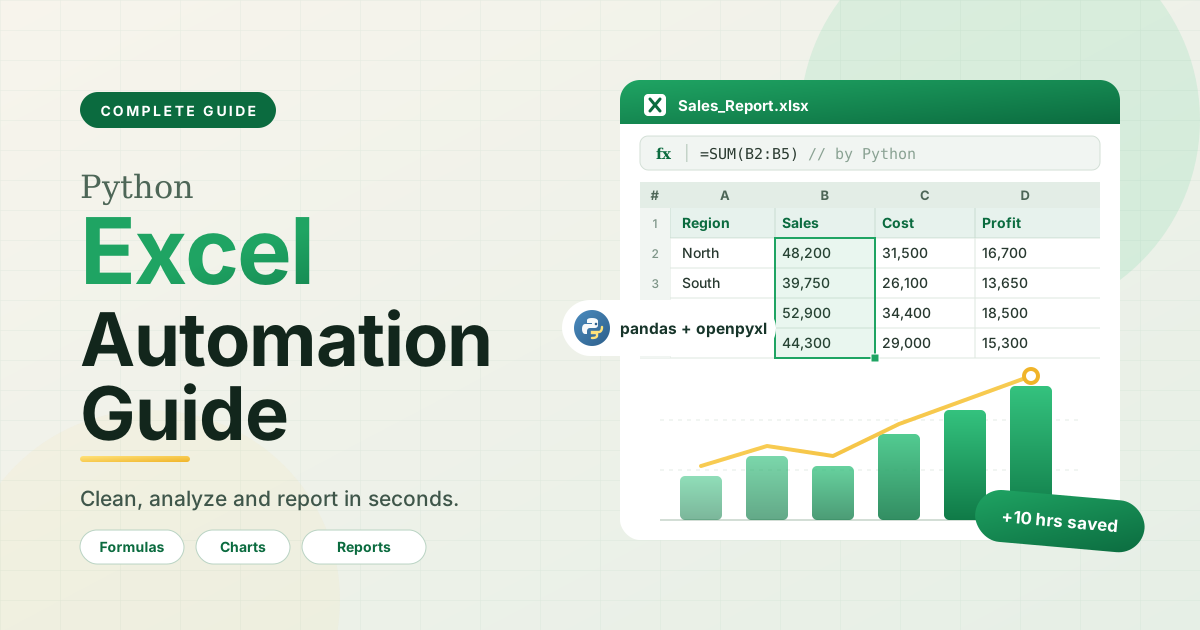
Excel is one of the most widely used tools for managing business data, preparing reports, tracking expenses, and analyzing information. However, working with large spreadsheets manually can consume hours and increase the risk of human error. Python Excel automation offers a practical solution by allowing users to automate repetitive spreadsheet tasks with simple scripts.
Whether you are a beginner, office worker, data analyst, or business owner, learning how to automate Excel with Python can improve productivity and make data management more efficient. From updating worksheets to combining multiple files, Python provides flexible tools for handling Excel workbooks without performing every action manually.
What Is Python Excel Automation?
Python Excel automation is the process of using Python programming to create, read, update, analyze, and manage Excel spreadsheets automatically. Instead of repeating the same actions every day, you can write a script that performs these operations in seconds.
For example, a Python script can combine monthly sales reports, calculate totals, organize customer information, remove duplicate records, and generate formatted Excel files.
This approach is especially useful for businesses that work with large datasets or regularly prepare reports. Once an automation script is configured correctly, it can be reused whenever similar tasks need to be completed.
Benefits of Automating Excel with Python
Python Excel automation offers several advantages for individuals and organizations.
1. Save Time on Repetitive Tasks
Many Excel tasks involve copying information, sorting rows, updating calculations, and preparing reports. Python can perform these operations automatically, allowing employees to focus on more valuable work.Python Programming Guide for Beginners
2. Reduce Manual Errors
Manual data entry and repetitive spreadsheet editing can introduce mistakes. Automated scripts follow predefined instructions, helping maintain consistency across files. However, scripts should still include validation checks to catch incorrect or missing data.
3. Process Large Amounts of Data
Python can process substantial datasets and combine information from multiple spreadsheets. The actual processing speed depends on the file size, available memory, and the libraries being used.
4. Create Consistent Reports
Businesses can use Python to generate standardized reports with consistent headings, formatting, calculations, and worksheet structures. This is particularly useful for financial summaries, inventory records, and sales performance reports.
Best Python Libraries for Excel Automation
Several Python libraries make spreadsheet automation easier. The right choice depends on your project requirements.
OpenPyXL
OpenPyXL is a popular library for working with Excel files in the .xlsx format. It allows users to read cell values, write data, apply formatting, manage worksheets, and adjust column widths.
It is a suitable option for beginners who want to automate everyday Excel tasks without opening the Excel application.
Pandas
Pandas is designed for data manipulation and analysis. It makes it easier to filter records, clean datasets, combine tables, calculate summaries, and export results to Excel.
Pandas is particularly useful when your automation project involves processing large tables rather than controlling detailed workbook formatting.
XlsxWriter
XlsxWriter helps create new Excel files with professional formatting. It supports features such as charts, conditional formatting, formulas, and multiple worksheets.
It is useful when generating polished reports from processed data.
How to Automate Excel Using Python
You can start automating Excel spreadsheets with a few basic steps.
Step 1: Install Python and the Required Library
First, install Python on your computer. Then open your terminal or command prompt and install OpenPyXL using the following command:
pip install openpyxl
If you plan to analyze spreadsheet data, you can also install Pandas:
pip install pandas openpyxl
Step 2: Create an Excel File
Create an Excel workbook named sales.xlsx. Add a worksheet containing two columns: Product and Sales.
Enter a few sample records, such as Laptop with 50000 in sales and Keyboard with 5000 in sales.
Step 3: Write Your First Automation Script
The following Python script reads the workbook, calculates total sales, and saves the result in a new Excel file.
from openpyxl import load_workbook
# Open the existing Excel workbook
workbook = load_workbook(“sales.xlsx”)
sheet = workbook.active
# Calculate total sales from column B
total_sales = sum(
sheet.cell(row=row, column=2).value or 0
for row in range(2, sheet.max_row + 1)
)
# Add the total to the worksheet
sheet[“A5”] = “Total Sales”
sheet[“B5”] = total_sales
# Save the updated workbook
workbook.save(“sales_report.xlsx”)
print(“Excel report created successfully!”)
This example assumes that sales figures are stored in column B and that the destination cells are available. For real business files, adjust the cell positions and validate the input data before running the script.
Step 4: Run the Script
Save your Python code as excel_automation.py in the same folder as sales.xlsx. Run it from the terminal:
python excel_automation.py
The script creates a new file named sales_report.xlsx containing the calculated sales total.
Practical Python Excel Automation Projects
Once you understand the basics, you can automate more advanced spreadsheet workflows.
Automate Monthly Reports
Use Python to combine monthly sales data, calculate performance metrics, and generate a consolidated report. This reduces the effort required to prepare recurring business summaries.
Clean and Organize Spreadsheet Data
Python scripts can identify empty cells, remove duplicate records, standardize date formats, and organize customer information. These tasks are useful for maintaining accurate business databases.
Manage Inventory Automatically
Businesses can automate stock reports by checking product quantities, calculating inventory values, and highlighting items that fall below a specified threshold.
Merge Multiple Excel Files
If different departments maintain separate workbooks, Python can combine their information into a single spreadsheet. This makes reporting and data comparison easier.
Best Practices for Reliable Excel Automation
Successful automation requires more than writing a script. Follow these practices to make your workflow dependable.
- Keep backups: Save original spreadsheets before modifying important business data.
- Validate input: Check for missing values, unexpected formats, and incorrect calculations.
- Use clear filenames: Organize source files and generated reports to avoid confusion.
- Handle errors: Add exception handling for missing files, invalid data, and permission problems.
- Test before scheduling: Verify the results on sample files before automating daily or weekly workflows.
- Protect sensitive information: Store business and customer data securely and limit unnecessary access.
Also, remember that Python libraries such as OpenPyXL do not calculate Excel formulas themselves. If your workflow depends on formula results being recalculated, you may need Excel or another compatible spreadsheet application.
Conclusion
Python Excel automation is a valuable skill for anyone who regularly works with spreadsheets. By using libraries such as OpenPyXL, Pandas, and XlsxWriter, you can automate repetitive tasks, clean datasets, combine workbooks, and generate professional reports with less manual effort.
Beginners should start with simple projects, such as calculating totals or organizing spreadsheet records, before moving to complex reporting systems. With regular practice, Python can become an effective tool for improving spreadsheet accuracy, saving time, and building more efficient business workflows.




One thought on “Python Excel Automation Guide: How to Automate Excel Tasks with Python”