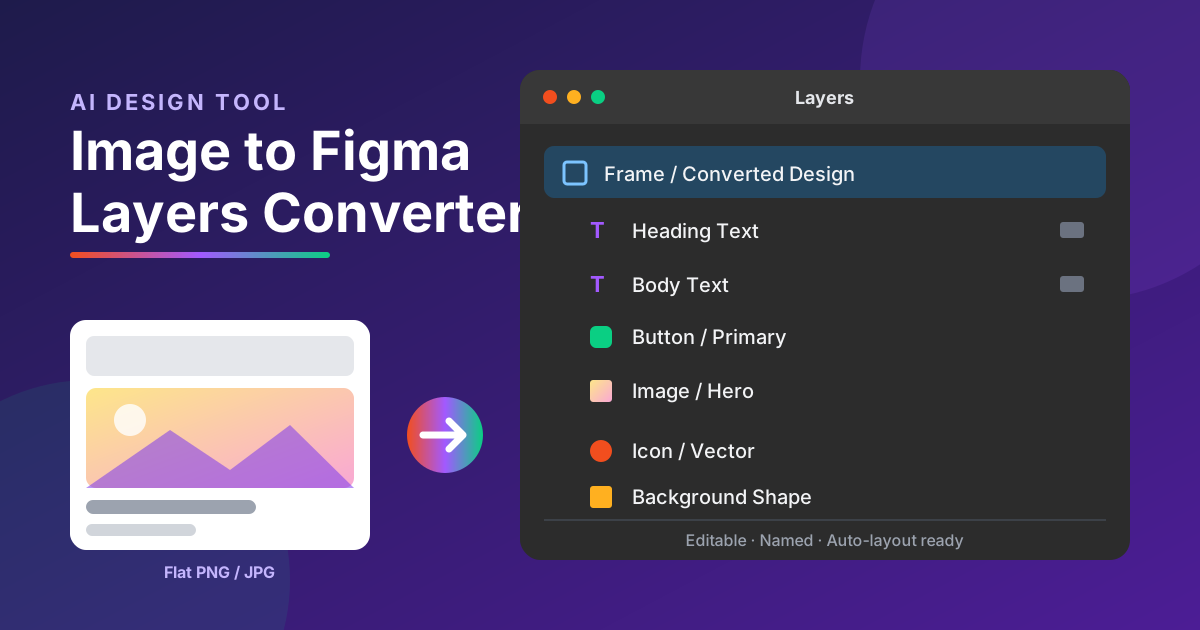
Creating a professional UI design from a screenshot or flat image can be time-consuming. Designers often need to recreate buttons, text, images, cards, icons, and layouts manually before they can begin editing a design in Figma. This process becomes even more challenging when working with complex website screenshots or mobile app interfaces.
An image to Figma layers converter offers a practical way to simplify this workflow. It uses image recognition, artificial intelligence, and layout analysis to identify visual elements and help convert a flat image into an editable design structure.
Instead of rebuilding every element from scratch, designers can use these tools to accelerate their workflow and focus more on improving the user experience.
What Is an Image to Figma Layers Converter?
An image to Figma layers converter is a tool that helps transform a screenshot, PNG, JPG, or other supported image into a structured design that can be edited in Figma.
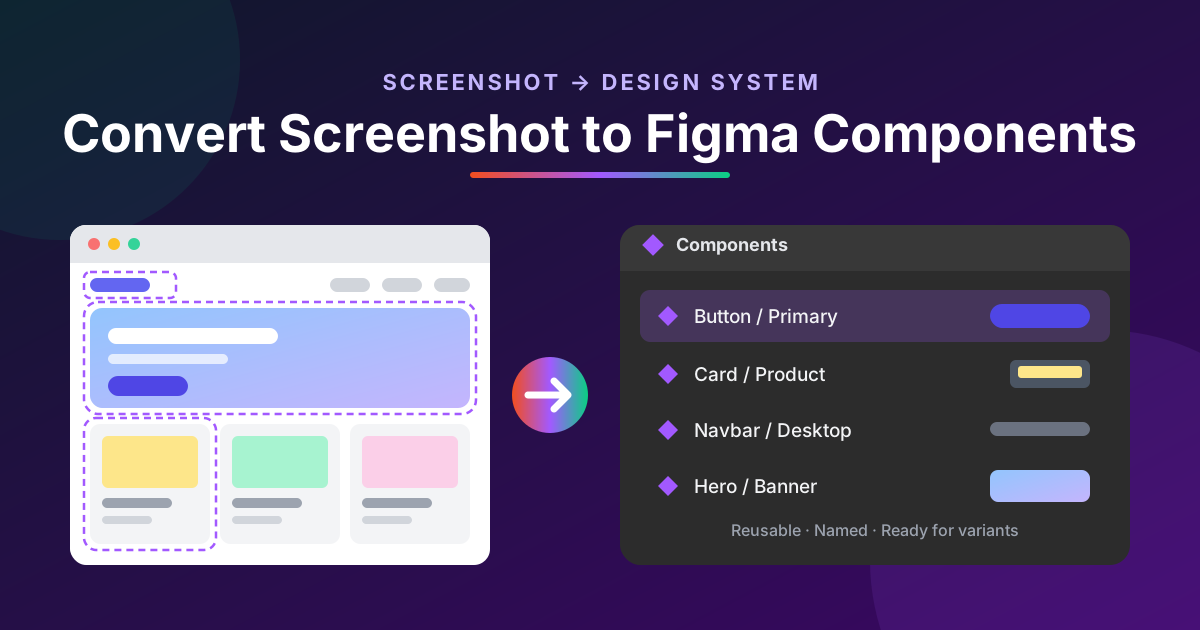
A regular image contains pixels rather than individual design components. For example, a website screenshot may display a navigation bar, heading, product cards, buttons, and background images, but these elements are not independently editable.
A converter attempts to identify these elements and recreate them as separate layers.
Depending on the tool, the output may include text layers, image layers, shapes, buttons, containers, and grouped interface components.
How It Works
Most image-to-design conversion tools follow a similar process:
- Image upload: The user uploads a screenshot or design reference.
- Visual analysis: AI or image-processing technology identifies text, shapes, images, and interface sections.
- Element detection: The system estimates the position, size, spacing, and hierarchy of individual elements.
- Layer generation: Detected elements are converted into editable objects or a design structure.
- Figma import: The generated design is transferred to Figma through a supported integration or compatible file format.
The quality of the result depends on image resolution, layout complexity, text clarity, and the converter’s capabilities.AI Screenshot to Figma Converter
Key Benefits of Converting Images Into Figma Layers
1. Save Time on Manual Design
Recreating a website interface from a screenshot can require hours of repetitive work. Designers may need to measure spacing, match colors, rebuild buttons, and position every element individually.
An image to Figma layers converter can automate parts of this process. It provides a starting structure that designers can refine instead of creating every component manually.
This is particularly useful when converting multiple page references or exploring several layout ideas.
2. Make Design Elements Editable
One of the biggest limitations of a flat image is that individual elements cannot be edited independently.
After a successful conversion, designers may be able to change text, adjust colors, resize buttons, reposition images, and modify individual interface sections.
This flexibility makes the design more useful for prototyping, redesign projects, and collaboration.
However, not every converter perfectly recognizes text or recreates the original components. Some manual corrections may still be necessary.
3. Improve UI Design Workflows
Figma is widely used for website design, mobile app interfaces, wireframes, and interactive prototypes.
Converting an image into editable Figma layers helps designers move from visual inspiration to practical design work more quickly. Developers and designers can also use the resulting file to discuss layout changes and explore alternative versions.
The conversion process is most effective when the generated layers have clear names, logical grouping, and appropriate alignment.
Common Use Cases for an Image to Figma Layers Converter
Website Screenshot to Editable Design
Designers can use website screenshots as references for rebuilding landing pages, dashboards, product pages, and navigation layouts.
A converter may identify headings, content sections, buttons, cards, and background elements, making it easier to recreate the overall structure in Figma.
Mobile App UI Recreation
Mobile app screenshots often contain repeated components, including navigation bars, profile cards, icons, and form fields.
Converting these interfaces into separate layers can simplify redesign work and help teams create updated app concepts without manually reproducing every visual element.
Design Inspiration and Competitor Analysis
Design teams frequently collect screenshots to study visual patterns, layouts, and user interface conventions.
An image-to-Figma workflow can help turn these references into editable examples for internal analysis. Designers should avoid copying protected designs for unauthorized commercial use and should respect applicable intellectual property rights.
Faster Prototyping
When a team needs to test an early design concept, a converter can provide a foundation for building a prototype. Designers can refine the layout, replace placeholder elements, and connect screens using Figma’s prototyping features.
Features to Look for in the Best Image to Figma Layers Converter
Not all conversion tools offer the same functionality. Before choosing one, evaluate the following features.
AI-Powered Element Recognition
Look for a tool that can distinguish text, images, buttons, shapes, and containers instead of treating the entire screenshot as one object.
Accurate element detection reduces the amount of manual correction required after conversion.
Editable Text and Shapes
Text recognition is essential when working with website and mobile app screenshots. A useful converter should attempt to recreate readable text as text layers rather than leaving all content embedded in a single image.
Editable vector shapes are also valuable for buttons, borders, dividers, and simple interface graphics.
Accurate Layout and Spacing
A good converter should preserve the approximate dimensions, alignment, margins, and spacing of the original design.
Tools that support logical grouping and Auto Layout-compatible structures can make the resulting file easier to maintain, although full Auto Layout reconstruction is not guaranteed.
Direct Figma Compatibility
Check whether the tool supports a Figma plugin, direct transfer, or a compatible import format. A convenient export process helps avoid unnecessary steps between conversion and editing.
Also review export limitations, image-resolution requirements, privacy policies, and pricing before uploading confidential designs.
How to Convert an Image Into Editable Figma Layers
Follow these steps to get better results from an image-to-Figma workflow.
Step 1: Prepare your image. Use a clear, high-resolution screenshot with readable text and minimal compression.
Step 2: Upload the screenshot. Open a suitable image-to-design converter and provide your PNG, JPG, or another supported file.
Step 3: Generate the design. Allow the tool to analyze the image and identify interface elements.
Step 4: Export to Figma. Transfer the generated output using the tool’s supported integration or import method.
Step 5: Inspect the layers. Check whether text, buttons, images, and containers are separated correctly.
Step 6: Refine the design. Correct font sizes, spacing, colors, alignment, grouping, and responsive behavior where necessary.
Step 7: Create reusable components. Turn repeated elements into Figma components and organize the layer hierarchy for future editing.
Limitations to Consider
An image to Figma layers converter does not always reproduce a design perfectly. Complex backgrounds, overlapping elements, decorative effects, unusual fonts, and low-quality screenshots can reduce conversion accuracy.
AI may also misinterpret text, merge neighboring objects, or create unnecessary layers. Furthermore, a screenshot does not contain the original design’s component logic, responsive rules, or interaction states.
For this reason, automated conversion should be treated as a starting point rather than a guaranteed replacement for professional design work.
Conclusion
An image to Figma layers converter can make UI recreation faster by helping transform flat screenshots into editable design elements. From website redesigns and mobile app interfaces to rapid prototyping, this technology reduces repetitive work and gives designers more time to focus on usability and visual quality.
The best results come from combining automated conversion with careful manual refinement. Choose a tool that offers reliable element recognition, editable text, organized layers, and a practical Figma export workflow. With the right approach, turning a static image into a workable design becomes a more efficient part of the creative process.

One thought on “Image to Figma Layers Converter: Turn Images Into Editable Designs”