
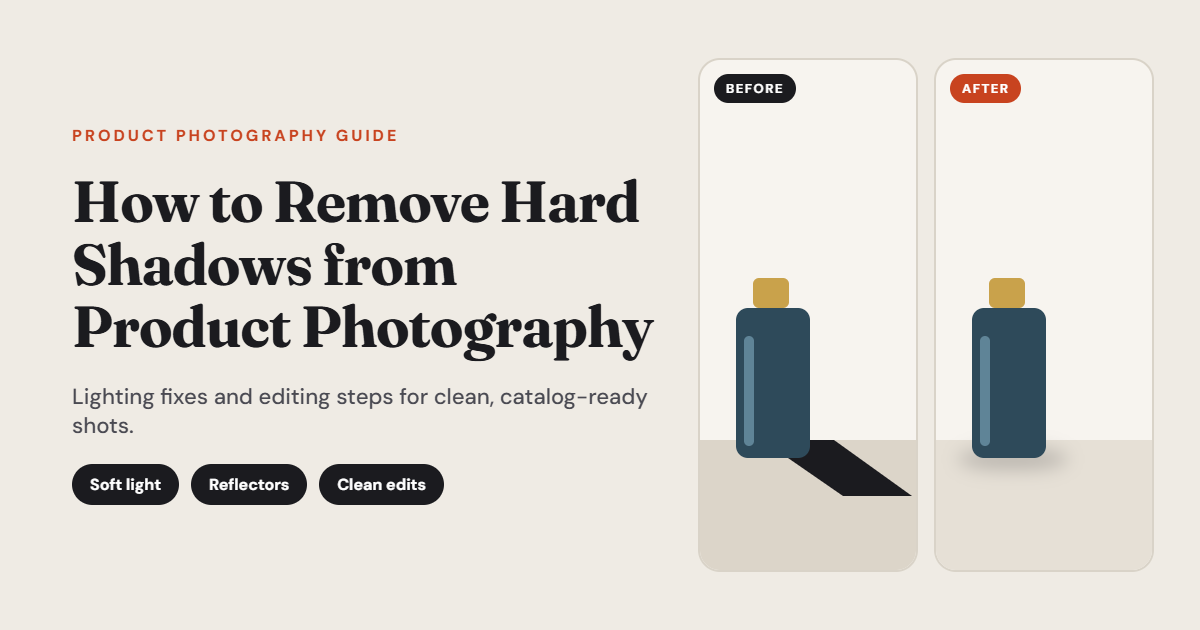
A product can be beautifully designed and still look cheap in a photo. The culprit is often a single dark, sharp-edged shadow cutting across the surface or stretching out behind it.
Shoppers judge quality in a glance. Hard shadows hide details, distort shapes, and make a catalog look inconsistent. The good news is that you can fix them, and you can often prevent them before you press the shutter.
This guide covers why hard shadows appear, how to avoid them while shooting, and how to remove hard shadows from product photography when they slip through.
Why Hard Shadows Appear in the First Place
A hard shadow has crisp edges and a deep, dark center. It happens when a small, bright light source hits your product from one direction.
Think of the midday sun or a bare flash. The light is concentrated, so objects block it sharply, and the shadow behind them looks like a cut-out.
Soft shadows are different. They fade gradually from dark to light, because the light wraps around the subject from a larger surface area.
The rule is simple: the bigger and closer the light source is relative to your product, the softer the shadow becomes.
How Hard Shadows Hurt Your Product Images
Before fixing the problem, it helps to know what you are fighting.
- Lost detail. Texture, stitching, labels, and engravings vanish inside dark patches.
- Wrong colors. Shadowed areas can look muddy, which misrepresents the real product.
- Distracting shapes. A strong shadow pulls the eye away from the item itself.
- Inconsistent catalogs. When every photo has a different shadow style, a store looks disorganized.
- More returns. If buyers cannot see the product clearly, the item may disappoint on arrival.AI Photo Shadow Remover
Fix It at the Source: Lighting Techniques
Editing is a useful safety net, but prevention is faster. A few changes to your setup can eliminate most hard shadows before they exist.
Use a Larger, Diffused Light Source
Place a softbox, a sheer white curtain, or a sheet of diffusion fabric between the light and your product. This spreads the light across a wider area and smooths the shadow edges.
No studio gear? A window with a thin white curtain works surprisingly well. Overcast days are nature’s softbox.
Move the Light Closer
It sounds backwards, but a close light is a soft light. When a large diffused source sits near the product, the light wraps around it, and shadow edges fade.
Add Fill Light with Reflectors
A white foam board or a folded sheet of white card can bounce light back into dark areas. Place it opposite your main light, just outside the frame.
Silver reflectors add more punch, while white ones stay gentle. Start with white for most products.
Try a Lightbox or Light Tent
For small items such as jewelry, cosmetics, or accessories, a light tent surrounds the product with diffused light from several sides. Shadows nearly disappear, and you get a clean, even look.
Light from Multiple Angles
Two lights at gentle angles can cancel out each other’s shadows. Keep one slightly stronger than the other so the product retains some shape.
Use an Overhead Setup for Flat Lays
For flat lay photography, position the light directly above the item and diffuse it. Because the light hits straight down, shadows fall beneath the product and stay minimal.
Choose the Right Surface and Background
The surface under your product affects how shadows behave.
A glossy white acrylic sheet reflects light upward and fills in the underside of the product. A matte white sweep reduces glare while still bouncing soft light.
Place the product a little away from the backdrop when possible. Distance reduces the shadow cast on the wall behind it. Or do the opposite and tuck the item close to a seamless curve so any shadow blends into the background.
Camera and Placement Tips
Small adjustments in how you shoot add up.
- Raise or lower the camera angle. A slightly different viewpoint can hide shadow areas from the lens.
- Use a higher aperture. Settings like f/8 to f/11 keep more of the product sharp, so shadow details stay readable.
- Shoot in RAW. RAW files hold more information in dark areas, which makes recovery much easier later.
- Use a tripod. It lets you keep the setup identical across shots, which is vital for consistency.
How to Remove Hard Shadows in Editing
Even good setups produce the occasional stubborn shadow. Here is how to handle it afterward.
Step 1: Start with the Basics
Open your image in a photo editor such as Adobe Photoshop, Lightroom, Affinity Photo, or a free tool like GIMP. Raise the shadows slider slightly to reveal hidden detail.
Do not go too far. Pushing it too hard introduces noise and a flat, gray look.
Step 2: Use Local Adjustments
Paint a mask over only the shadowed region using an adjustment brush. Then brighten that area and match the color temperature to the nearby lit parts of the product.
Feather the brush edge so the change blends in without a visible boundary.
Step 3: Clone or Heal Cast Shadows on the Background
When the shadow falls on a plain backdrop, use the healing brush or clone stamp to sample clean sections and paint over it. Work in small strokes and vary your sample points to avoid repeating patterns.
Step 4: Separate the Product with a Clipping Path
For catalog images that need a pure white background, cut the product out with the pen tool. Place it on a clean layer, then rebuild a soft shadow under it if needed.
This method takes time, but it delivers clean edges and total control.
Step 5: Try AI-Assisted Shadow Removal
Several modern editors use AI to detect and erase shadows in a click or two. They work best on simple shapes and plain backgrounds. Always zoom in afterward to check for smudged edges or lost textures.
Step 6: Add a Natural Soft Shadow Back
Removing every shadow can make the product look like it is floating. Many e-commerce platforms like a subtle contact shadow so the item feels grounded.
Create a new layer, paint a soft, low-opacity shadow beneath the product, and blur it lightly. The result looks real without being harsh.
Common Mistakes to Avoid
A few habits can undo your hard work.
- Overbrightening. Too much lift turns shadows into gray smudges.
- Ignoring color shifts. Shadows often carry a cool tint, so balance them with the lit areas.
- Skipping a consistency check. Compare the edited image against the rest of your catalog.
- Editing without a backup. Keep the original file untouched and work on copies or layers.
- Forgetting reflections. Shiny products may carry reflected shadows that need cleanup too.
Quick Checklist Before You Publish
Run through this list with every image:
- Are the product edges clear and detailed?
- Does the shadow, if any, look soft and natural?
- Do colors match the real item?
- Does the image fit the style of your other photos?
- Does it look good on both a phone and a large monitor?
Frequently Asked Questions
Can I fix hard shadows without a studio?
Yes. A window, a white curtain, and a foam board will handle most small products. Combine that with basic editing and you can get professional-looking results.
Should I remove shadows completely?
Not always. A faint, soft contact shadow adds depth and realism. The goal is to remove harsh, distracting shadows, not every trace of them.
Is editing better than fixing the lighting?
Lighting is better. It saves time and gives cleaner results. Editing works best as a finishing step.
What file format is best for editing?
RAW. It preserves more detail in shadow regions, giving you more room to adjust.
Final Thoughts
Hard shadows are a lighting problem first and an editing problem second. Softer, larger light sources and a little fill from reflectors prevent most of them. For the rest, local adjustments, careful cloning, and a rebuilt soft shadow bring a photo back to life.
Start with one product, try one lighting change, and compare the results. Small, deliberate tweaks lead to a consistent, professional catalog that helps shoppers see exactly what they are buying.









2 thoughts on “How to Remove Hard Shadows from Product Photography: Shooting and Editing Techniques That Work”