Every team has that one flowchart. It lives in a screenshot, a slide, or a photo of a whiteboard, and nobody remembers who drew it.
When the process changes, someone has to redraw the whole thing by hand. That is slow, and the new version never quite matches the old one.
An AI flowchart to Mermaid converter solves this by reading your diagram and rebuilding it as clean, editable text. This guide explains how it works, where it helps, and how to get accurate results.
What Is Mermaid, and Why Does It Matter?
Mermaid is a text-based diagramming language. Instead of dragging boxes and arrows around a canvas, you write simple lines of code, and the diagram renders automatically.
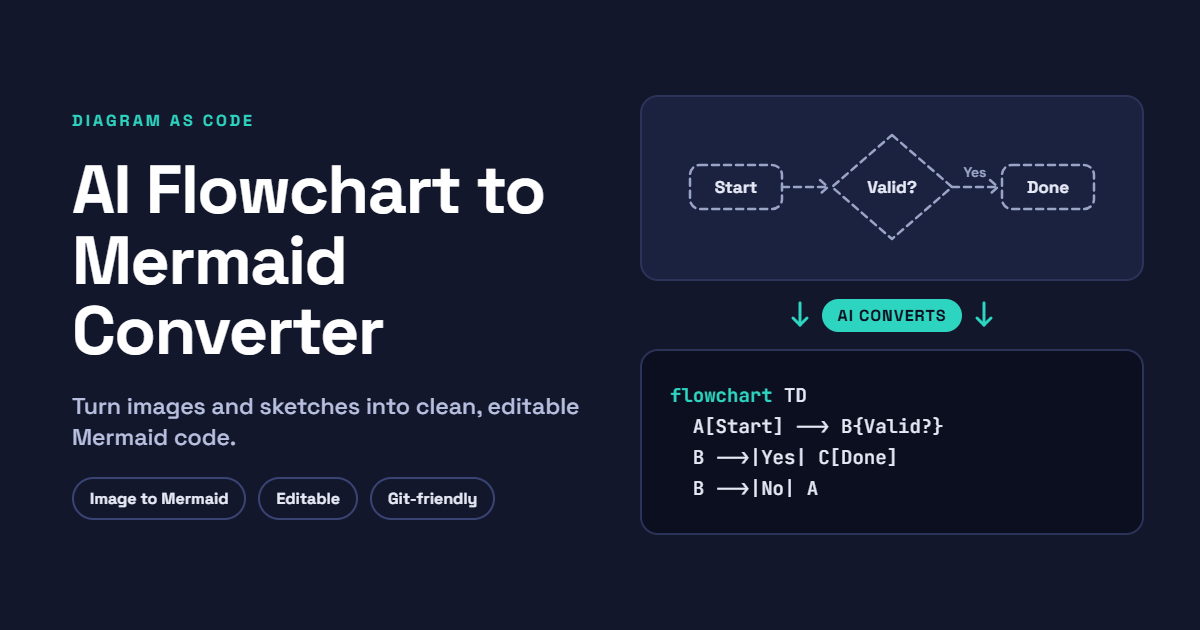
A basic flowchart might look like this: a start node, a decision, and two outcomes, all described in a few short lines. The syntax is readable even if you have never coded.
Mermaid is popular because it fits naturally into the places teams already work. GitHub, GitLab, Notion, Obsidian, and many documentation platforms can render it directly from Markdown.
That makes diagrams easy to version, review, and update, just like any other text file.
What Does an AI Flowchart to Mermaid Converter Do?
In plain terms, it translates a visual diagram into Mermaid syntax.
You feed it a source, such as a screenshot, a PNG, a scanned sketch, or even a written description of a process. The AI identifies the shapes, labels, and connections, then produces Mermaid code you can paste into any compatible editor.
The key word is “AI.” Older converters relied on rigid rules and struggled with anything messy. Modern models can interpret handwriting, uneven shapes, and varied layouts, because they understand context rather than only matching pixels.
Common Input Types
Most tools accept one or more of these:
- Images and screenshots of existing flowcharts
- Hand-drawn sketches from notebooks or whiteboards
- PDF pages containing process diagrams
- Plain-language descriptions, such as “A customer submits a form, the system validates it, and errors return to the user”
What You Get Back
The output is usually a block of Mermaid code, often with a live preview beside it. You can copy the code, tweak labels, change directions, and export the result as SVG or PNG.
Why Convert Flowcharts to Mermaid Code?
The advantages go beyond saving a few minutes.
Faster Editing
Changing a label in a screenshot means opening a design tool and fixing the layout. In Mermaid, you change one word in a text file.
Version Control That Works
Binary images tell you nothing in a pull request. Mermaid diffs show exactly which step was added, renamed, or removed, so reviewers understand the change at a glance.
Consistent Styling
Mermaid applies themes across your whole project. Every diagram in your documentation can share the same fonts, colors, and spacing without manual cleanup.
Better Collaboration
Anyone with access to the repository can suggest an edit. There is no need for special software licenses or a shared design file.
Searchable Documentation
Diagram text is searchable. Teammates can find every flowchart that mentions “refund approval” or “user login” in seconds.
Who Benefits Most?
This kind of tool is useful across several roles.
Developers document logic, API flows, and system behavior directly in README files.
Product managers convert whiteboard sessions into shareable user-flow diagrams after a workshop.
Business analysts capture process maps without wrestling with heavy diagramming software.
Technical writers keep documentation current as products change.
Students and educators turn textbook diagrams into editable study material.
How the Conversion Process Works
The details differ between products, but the workflow is surprisingly consistent.
Step 1: Prepare Your Source
Upload a clear image or write a short description. Higher resolution, good contrast, and a straight-on angle improve recognition a lot.
Step 2: Let the AI Analyze the Diagram
The model detects nodes, shape types, arrows, and text. It then works out the relationships, such as which step leads to which, and where decisions branch.
Step 3: Generate the Mermaid Code
The tool outputs syntax using Mermaid’s flowchart notation. Rectangles become process steps, diamonds become decisions, and arrows become connections.
Step 4: Review and Refine
Check the preview against your original. Look for missing arrows, swapped labels, or misread words.
Step 5: Export or Embed
Paste the code into your Markdown file, wiki, or documentation site. Or export an image for slides and reports.
Tips for Getting Accurate Results
AI is impressive, but it still benefits from good input. These habits make a noticeable difference.
- Use clean lines. Sketches with clear, separate shapes convert better than crowded drawings.
- Write legibly. Block letters beat cursive for handwritten diagrams.
- Label decision branches. Mark paths as “Yes” and “No” so the logic is unambiguous.
- Crop out noise. Remove menus, watermarks, and unrelated content from screenshots.
- Keep text short. Long sentences inside boxes can confuse parsing. Use concise labels.
- Convert in sections. A very large flowchart often works better when split into smaller parts and merged afterward.
Features to Look for in a Converter
Not every tool is equal. When comparing options, check for these qualities.
Accuracy with Real-World Inputs
Test the tool with a messy sketch, not only a polished example. The way it handles imperfection tells you most of what you need to know.
Live Preview and Editing
A side-by-side editor lets you fix mistakes immediately instead of regenerating from scratch.
Support for Multiple Diagram Types
Some tools handle sequence diagrams, state diagrams, and class diagrams as well as flowcharts. That flexibility helps if your needs grow.
Privacy and Data Handling
Process diagrams often contain sensitive business logic. Read how the service stores and uses uploads before sharing internal material.
Export Options
Look for SVG, PNG, and plain code export so the output fits wherever you publish.
Pricing and Limits
Free tiers are fine for occasional use. Heavy users should check upload caps and subscription costs.
Limitations to Keep in Mind
A converter is a strong starting point, not a replacement for judgment.
Complex diagrams with crossing lines can produce incorrect connections. Unusual symbols may be mapped to the wrong shape. Low-quality photos sometimes lead to misread text.
Treat the first output as a draft. A quick review catches most issues in a minute or two, and it is still far faster than rebuilding the diagram manually.
A Quick Example
Imagine a support team that sketches its ticket handling process on a whiteboard. The sketch shows a ticket arriving, a check for urgency, and two paths: escalate or respond.
After uploading a photo, the AI returns Mermaid code with a start node, a decision labeled “Urgent?”, and two follow-up steps. The team pastes it into their internal wiki, adds a step for customer follow-up, and the diagram is live.
Total time: a few minutes. Total design software opened: none.
Best Practices for Managing Mermaid Diagrams
Once your flowcharts are in code, a few habits keep them tidy.
- Store diagrams beside the documentation they support.
- Use clear node names so the code stays readable.
- Add comments for complex branches.
- Review diagram changes in pull requests, just like code.
- Standardize one theme across the project.
Frequently Asked Questions
Do I need to know Mermaid syntax to use a converter?
No. The AI writes the code for you. Learning the basics helps with fine-tuning, but it is optional.
Can it read handwritten flowcharts?
Often yes, provided the writing is clear and the photo is well lit. Results improve with tidy handwriting.
Is the output always correct?
Not always. Review the preview and fix any misread labels or connections before publishing.
Where can I use Mermaid code afterward?
GitHub and GitLab Markdown, Notion, Obsidian, Confluence with plugins, and many static site generators all support it.
Is it suitable for large, complex diagrams?
It can be, but splitting big diagrams into smaller sections usually produces better accuracy.
Final Thoughts
Diagrams should be easy to keep current. When they are trapped inside images, they quickly go stale.
An AI flowchart to Mermaid converter frees them. You get editable, version-friendly code in a fraction of the time it takes to redraw, and your documentation stays accurate as your processes evolve.
Try it on one old flowchart this week. Upload it, review the output, and see how much easier maintenance becomes once the diagram lives as text.





One thought on “AI Flowchart to Mermaid Converter: Turn Diagrams into Editable Code in Seconds”