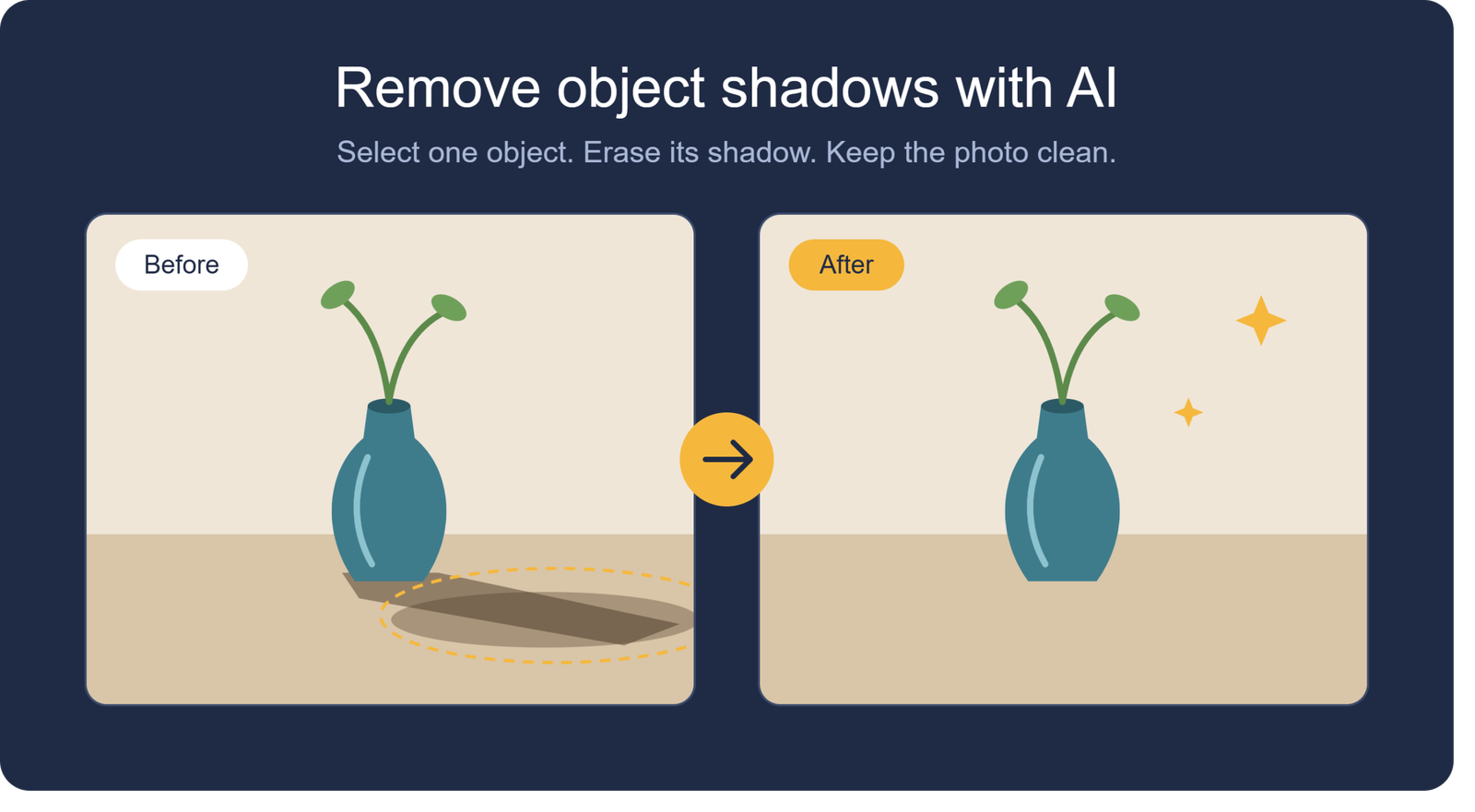
Clean up distracting shadows without rebuilding your entire image from scratch. This AI shadow removal tool is designed for people who need to remove one object shadow from a photo while keeping the surrounding texture, lighting, and composition looking natural. Whether you are preparing product photos, social posts, real estate images, portfolio shots, or marketplace listings, the goal is simple: a cleaner image that still looks like the original scene.
Need to remove a single object shadow without re-editing the whole photo?
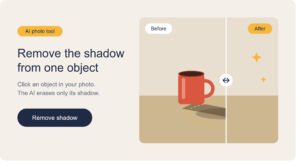
Yes—this tool is made for that exact task. Instead of applying broad filters or changing the full image, you can focus on the specific shadow that is causing the distraction. The photo enhancement AI helps blend the edited area with nearby pixels, so the result feels more subtle than a heavy manual retouch.
This is especially useful when the object itself looks fine but its shadow pulls attention away from the subject. A chair leg shadow on flooring, a product shadow across a backdrop, or a harsh object shadow on a wall can make an otherwise strong photo look unfinished. With an image shadow remover, you can target the problem area and keep the rest of the image intact.
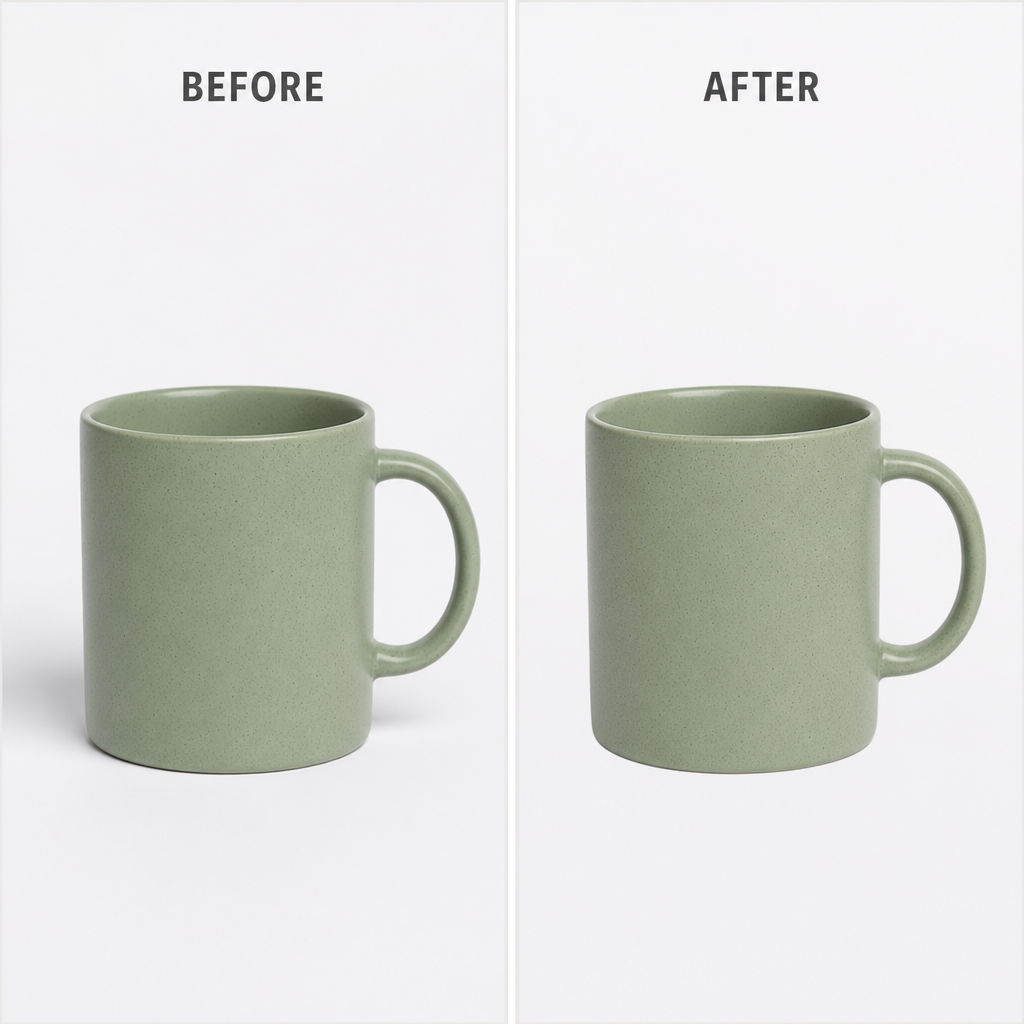
Clean results for everyday photo problems
Shadows are not always bad. In many photos, they add depth and realism. The problem begins when one unwanted shadow looks too strong, falls in the wrong direction, crosses an important detail, or makes an image feel less polished than it should.
This AI photo editing workflow is built around selective cleanup. You do not need to brighten the whole image, crop away useful space, or spend time adjusting layers manually. The tool helps you isolate the shadow, remove or reduce it, and preserve the visual balance of the original photo.
Use it when you want to improve:
- Product photos where a prop, stand, hand, or object casts a distracting mark on the background.
- Marketplace listings that need a clean, consistent appearance without looking artificially edited.
- Real estate images where a small object shadow makes a room, wall, floor, or countertop look uneven.
- Portrait and lifestyle photos where an object shadow falls across clothing, skin, furniture, or decor.
- Social media visuals that need quick polish before posting, sharing, or scheduling.
- Creative assets where one shadow competes with the subject or breaks the intended mood.
AI image editing that keeps the focus on your subject
Good editing should not call attention to itself. When a shadow is removed poorly, the image can end up with blurry patches, odd colors, repeated textures, or a flat area that looks obviously repaired. A focused ai image editing process helps avoid that by treating the edit as part of the photo, not as a separate overlay.
The tool looks at the surrounding area and helps create a smoother transition where the shadow used to be. For example, if a shadow falls across a light tabletop, the edited area should still resemble that tabletop—not a washed-out blur. If the shadow crosses fabric, flooring, or a painted wall, the goal is to maintain believable texture and tone.
A practical before-and-after scenario
Imagine you photographed a handmade candle for an online shop. The candle is sharp, the label is readable, and the background color is perfect—but a nearby object casts a dark diagonal shadow across the surface behind it. Instead of reshooting the setup or editing the entire backdrop, you use the shadow removal tool to mark the unwanted shadow and clean that specific area.
The finished photo still looks like the same image. The product remains the hero, the background looks calmer, and the viewer is no longer distracted by a shadow that should not be there.
A simple workflow from upload to polished image
You do not need to be a professional retoucher to use an AI tool to remove one object shadow from photo edits. The process is designed to be direct, visual, and easy to repeat when you are working through multiple images.
- Upload your photo and choose the image where one shadow is distracting from the subject.
- Select the unwanted shadow using the available brush, mask, or selection area.
- Preview the AI shadow removal to check how the cleaned area blends with the surrounding image.
- Refine the selection if needed by adjusting the area, especially around edges, corners, and textured surfaces.
- Download the enhanced photo once the edit looks natural and ready for use.
For best results, select only the shadow you want to remove. Avoid covering important object edges unless the shadow overlaps them. A smaller, more accurate selection often gives the photo enhancement AI better context and helps preserve nearby detail.
Built for creators, sellers, and busy teams
This ai photo editing tool is useful when you need cleaner images but do not want to slow down your publishing process. It gives creators a practical way to fix small visual issues before an image goes live. It also helps teams keep product and campaign visuals consistent when a full reshoot is not practical.
It is a strong fit for:
- Ecommerce sellers improving product photos for stores, catalogs, and ads.
- Content creators polishing visuals for posts, thumbnails, and digital campaigns.
- Photographers making quick cleanup edits before client review or delivery.
- Real estate and rental hosts refining room photos with fewer distracting marks.
- Design and marketing teams preparing cleaner visuals for landing pages, emails, and presentations.
- Small businesses that need professional-looking images without complex editing software.
The benefit is not just removing a shadow. It is saving the useful parts of the photo while fixing the one detail that makes it feel less finished.
Smarter shadow cleanup with less manual work
Traditional shadow removal can take time because the editor often needs to clone texture, adjust brightness, balance color, and smooth edges by hand. That level of control is helpful for complex retouching, but it is more than many everyday edits require.
An AI image shadow remover makes the process more accessible. It helps handle the repetitive blending work so you can focus on choosing the right area and reviewing the result. You stay in control of the creative decision, while the AI assists with the technical cleanup.
Tips for more natural results
- Choose the highest-quality version of your photo when possible.
- Select the full shadow, including faded edges, rather than only the darkest part.
- Leave nearby objects unselected unless they also need correction.
- Review the edited area at normal viewing size and close-up view.
- Keep some natural shadows when they help the image feel realistic.
These small choices matter. The best shadow removal does not erase every sign of light and depth; it removes the shadow that does not belong.
Turn distracting images into cleaner assets
A single unwanted shadow can make a photo feel less professional, even when everything else is working. With the right ai shadow removal workflow, you can correct that issue without starting over. The result is a cleaner, more usable image for selling, sharing, publishing, or presenting.
Use this shadow removal tool when you want a fast, focused edit that respects the original photo. Upload your image, mark the shadow, preview the result, and create a polished version that keeps attention where it belongs.

One thought on “AI tool to remove one object shadow from photo”