
Flowcharts are widely used to explain processes, visualize decisions, and simplify complex workflows. Developers use them to plan software logic, students use them to understand algorithms, and businesses rely on them to document operational procedures. However, when a flowchart exists only as an image, making changes can be difficult.
A static diagram cannot always be edited easily, especially when the original source file is unavailable. Recreating the entire flowchart manually can take time and introduce mistakes.
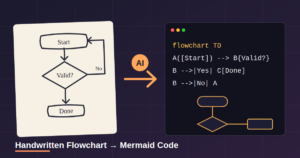
The ability to convert a flowchart image to Mermaid provides a practical solution. Instead of redrawing every shape and arrow, users can transform a diagram into Mermaid code and generate an editable version using a compatible renderer.
With the help of AI-powered image recognition, this process can become faster and more accessible. In this guide, you will learn how flowchart image conversion works, how to generate Mermaid syntax, which challenges to expect, and how to achieve more accurate results.
What Does It Mean to Convert a Flowchart Image to Mermaid?
Converting a flowchart image to Mermaid means translating a visual diagram into text-based code that describes its structure and connections.
Mermaid is a diagramming tool that uses a simple syntax to generate diagrams from text. It supports flowcharts, sequence diagrams, entity relationship diagrams, class diagrams, state diagrams, and other visual formats.
A flowchart image might contain rectangles representing actions, diamonds representing decisions, and arrows showing the direction of a process. Converting it to Mermaid involves identifying these elements and expressing them through code.
For example, a simple customer registration flowchart can be represented as follows:
flowchart TD AI Flowchart to Mermaid Converter
A([Start]) –> B[Enter User Details]
B –> C{Details Valid?}
C — Yes –> D[Create Account]
C — No –> E[Show Error Message]
D –> F([End])
E –> B
This example demonstrates how a visual workflow can be represented through readable text. You can change the labels, add new steps, or modify the connections by editing the code.
The main advantage is that the diagram becomes easier to maintain, reuse, and integrate into technical documentation.
Why Convert Flowchart Images into Mermaid Code?
There are several reasons to transform static flowchart images into editable Mermaid diagrams.
1. Make Static Diagrams Editable
A PNG or JPEG flowchart is essentially a picture. Editing it may require graphic design software or access to the original diagramming file.
Mermaid code provides a different approach. You can update a node label, add a decision, or remove an unnecessary step directly in the source code.
This makes Mermaid useful for diagrams that change frequently.
2. Save Time on Manual Redrawing
Recreating a complex diagram from scratch requires adding shapes, positioning labels, and connecting arrows.
An image-to-Mermaid converter can automate much of this initial work. Users can spend more time checking the workflow and less time reproducing its visual elements.
3. Improve Technical Documentation
Software teams often need diagrams to explain algorithms, application architecture, API requests, and troubleshooting procedures.
Mermaid allows diagrams to be stored alongside documentation and source code. This makes it easier to update visual explanations when the underlying system changes.
4. Support Version Control
Because Mermaid diagrams are text-based, their source files can be managed using version control systems such as Git.
Developers can review changes, track revisions, and collaborate on diagram updates using familiar development workflows.
5. Simplify Diagram Sharing
Text-based diagrams can be shared through compatible documentation platforms, project repositories, and collaboration tools.
Instead of distributing an image that may quickly become outdated, teams can maintain a reusable diagram source.
How to Convert a Flowchart Image to Mermaid
The conversion process depends on the tool you use. Some applications provide AI-assisted image interpretation, while others require manual recreation. The following workflow explains how to approach the task efficiently.
Step 1: Prepare Your Flowchart Image
Start with a clear image of the original flowchart. It can be a scanned document, a screenshot, or a photograph of a diagram drawn on paper.
Make sure the labels are readable and the arrows are visible. If the image contains shadows, low contrast, or overlapping elements, improve its quality before uploading it.
A clean image helps the recognition system identify the diagram’s components more accurately.
Step 2: Upload the Image to an AI-Powered Tool
Choose an image-to-diagram tool that supports visual interpretation and Mermaid code generation.
Upload your PNG, JPEG, or other supported image format. If the tool accepts written instructions, explain that you want the original flowchart converted into valid Mermaid syntax.
For example, you can use this instruction:
“Analyze the uploaded flowchart image and convert it into Mermaid flowchart code. Preserve the original labels, decision branches, arrow directions, and process sequence. If any element is unclear, identify it instead of guessing.”
This instruction encourages the tool to focus on structural accuracy rather than simply creating a similar-looking diagram.
Step 3: Identify the Flowchart Components
The conversion system should identify the main elements in the image, including:
- Start and end points
- Process steps
- Decision diamonds
- Connecting arrows
- Branch labels such as Yes and No
- Loops and repeated actions
This stage is particularly important for complex diagrams. Recognizing the text without understanding the connections may produce a diagram that looks correct but represents the wrong process.
Step 4: Generate Mermaid Code
After interpreting the diagram, the tool generates Mermaid syntax.
A typical flowchart starts with a declaration such as flowchart TD, which tells Mermaid to arrange the diagram from top to bottom.
Nodes are assigned identifiers, and arrows describe the connections between them. Different bracket styles represent different node shapes.
For example:
flowchart TD
A([Start]) –> B[Collect Information]
B –> C{Information Complete?}
C — Yes –> D[Save Record]
C — No –> E[Request Missing Data]
E –> B
D –> F([Finish])
This code includes a decision, two possible paths, and a loop that returns the user to the information collection step.
Step 5: Render the Diagram
Paste the generated code into a Mermaid-compatible editor or documentation environment.
The renderer converts the text into a visual flowchart. Review the result and compare it with the original image.
Check that every process appears in the correct order and that all branches connect to the appropriate destinations.
Step 6: Correct Errors and Finalize the Diagram
AI-generated Mermaid code may contain incorrect labels, missing connections, or syntax errors.
Correct any issues before using the diagram in a report, software project, or business document.
For important workflows, validate the logic with someone familiar with the process. A diagram that renders successfully is not necessarily a diagram that accurately represents the original.
Common Challenges When Converting Flowchart Images
Although image conversion can reduce manual work, several problems may affect the final result.
Poor Image Quality
Blurry screenshots, low-resolution photographs, and faded handwritten labels can make text recognition unreliable.
How to improve results: Use high-resolution images, increase contrast when necessary, and crop unnecessary background areas.
Incorrect Decision Branches
A decision diamond may connect to multiple steps, with each arrow representing a different outcome. If the tool misreads the arrows or branch labels, it may generate incorrect logic.
How to improve results: Check every outgoing connection from each decision node. Confirm that Yes, No, True, False, and other labels lead to the correct steps.
Missing Nodes or Connections
Some image converters may overlook small shapes, crossing arrows, or labels placed close to connecting lines.
How to improve results: Compare the rendered diagram with the original image systematically. Check every node and trace each arrow from its starting point to its destination.
Complex Flowchart Structures
Large diagrams with multiple loops, nested decisions, or interconnected sections can be difficult to interpret automatically.
How to improve results: Divide the image into smaller sections and convert them separately. Combine the resulting Mermaid code only after verifying how the sections connect.
Invalid Mermaid Syntax
A tool might understand the diagram but produce code that the renderer cannot process.
How to improve results: Use a Mermaid-compatible editor to identify syntax errors. Keep node identifiers consistent and use supported Mermaid notation.
Best Practices for Accurate Flowchart Image Conversion
A few simple practices can improve the reliability of the conversion process.
Use Standard Flowchart Symbols
Conventional shapes make the diagram easier to interpret. Use rectangles for processes, diamonds for decisions, and clearly marked start and end points.
Preserve the Original Meaning
The goal is to reproduce the workflow, not redesign it without permission. Keep the original labels and relationships unless you intentionally want to improve the diagram.
Review the Generated Mermaid Code
Do not rely entirely on automatic conversion. Read the source code and verify that each node and connection represents the intended process.
Keep the Code Organized
Use meaningful node labels and consistent identifiers. For large diagrams, group related steps logically and avoid unnecessary connections.
Protect Sensitive Information
Flowcharts may reveal internal business procedures, system architecture, or confidential operational details. Before uploading an image, review the tool’s privacy policy and data retention practices.
For sensitive workflows, consider approved tools that can process images within your organization’s security requirements.
Who Can Benefit from Converting Flowchart Images to Mermaid?
Software Developers
Developers can convert design sketches and existing workflow images into diagrams for algorithms, APIs, authentication processes, and application logic.
Students and Educators
Students can turn diagrams from class notes or study materials into editable digital flowcharts. Teachers can use Mermaid to prepare lessons and explain programming concepts.
Business Analysts
Business analysts can digitize process maps, approval workflows, and customer journey diagrams to simplify documentation and collaboration.
Project Managers
Project managers can transform planning diagrams into editable representations of project stages, dependencies, and decision-making procedures.
Technical Writers
Technical writers can use Mermaid code to create maintainable diagrams for user guides, system documentation, and troubleshooting instructions.
How to Choose the Right Flowchart Image to Mermaid Converter
The best tool depends on the complexity of your diagrams and how often you need to convert them.
Look for these capabilities:
- Image upload support: Accepts common image formats and, ideally, scanned documents.
- AI diagram recognition: Identifies text, shapes, arrows, and decision branches.
- Mermaid code export: Produces actual editable Mermaid syntax rather than only a new image.
- Live preview: Allows you to compare the generated diagram with the source.
- Error correction: Makes it easy to edit labels, connections, and code.
- Privacy controls: Clearly explains how uploaded images and generated content are handled.
If you only convert simple diagrams occasionally, a free option may be sufficient. If you work with complex technical workflows, prioritize structural accuracy, editing capabilities, and reliable code export over the number of advertised features.
Conclusion
Converting a flowchart image to Mermaid is a practical way to transform static diagrams into editable, text-based visual documentation. It can save time, simplify updates, and make workflows easier to share across software development, education, business analysis, and project management.
AI-powered conversion tools can identify shapes, read labels, interpret connections, and generate Mermaid syntax with less manual effort. However, their results still require verification, particularly when the original diagram contains complicated logic or unclear connections.
For the best outcome, begin with a clear image, use a tool that generates Mermaid code, render the output, and compare every important connection with the original flowchart.
By combining AI assistance with careful validation, you can turn existing diagram images into maintainable digital assets that are easier to edit, document, and reuse.